![logo_bec_bildmarke_und_schriftzug_big_RGB_small.jpg]](https://service.bec-robotics.com/hs-fs/hubfs/logo_bec_bildmarke_und_schriftzug_big_RGB_small.jpg?height=50&name=logo_bec_bildmarke_und_schriftzug_big_RGB_small.jpg)
The KRCDiag is a set of files and logging information about the actual state of the robot. It can
be used to analyze the state and circumstances in case of a failure.
It is important to create a KRCDiag log file as soon as possible after an event!
Please note that there might be small discrepancies with this guide, depending on your KUKA software version/KUKA control cabinet version/KUKA smart pad version.
- Preperation
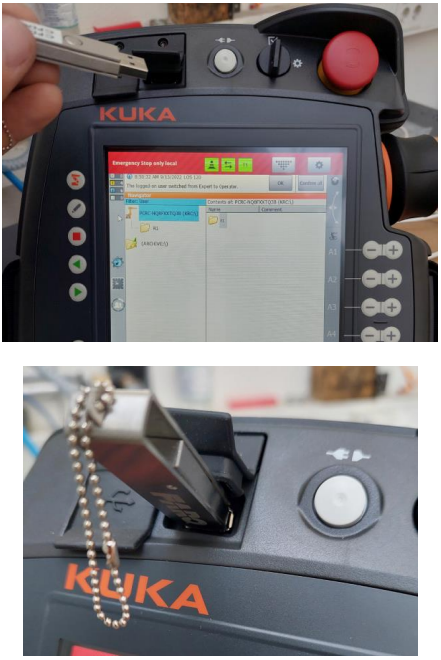
- Insert a standard USB Stick into the KUKA Smart-Pad
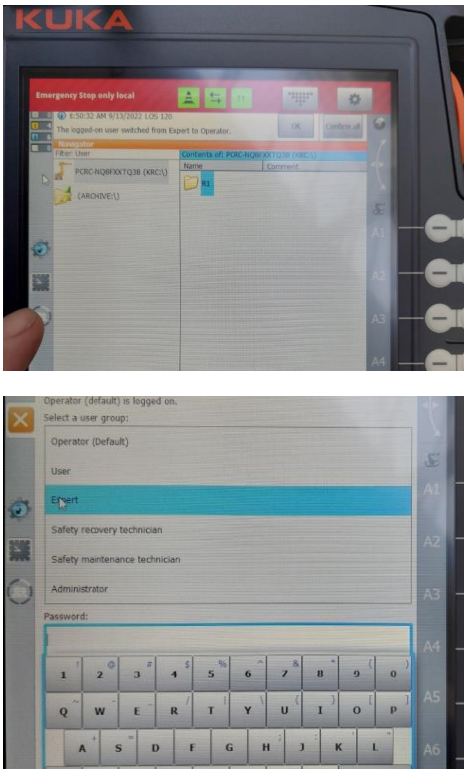
- Change User to “Expert"
- Now, the KUKA file system is visible with the mounted USB-Stick:
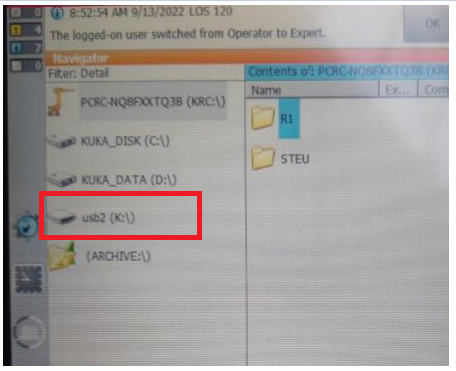
- Insert a standard USB Stick into the KUKA Smart-Pad
- Create a KRCDiag file
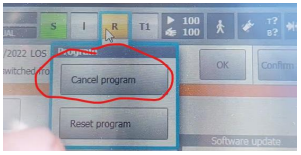
- Switch to T1 and cancel the active program
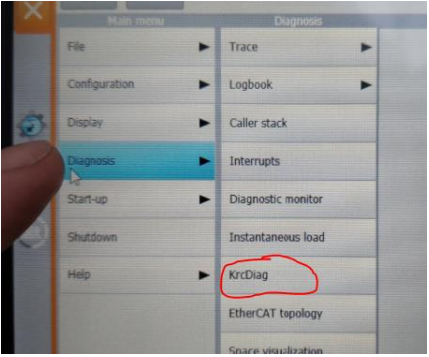
- Go to Main menu
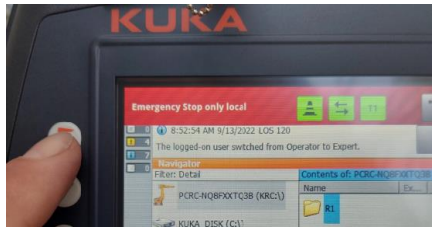
- Go to “Diagnostics” and press “KrcDiag"
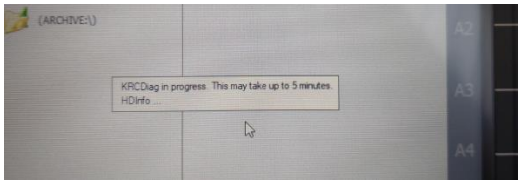
- Then, the following message will appear:
- After some minutes, the message change with the information where the created file can be found:
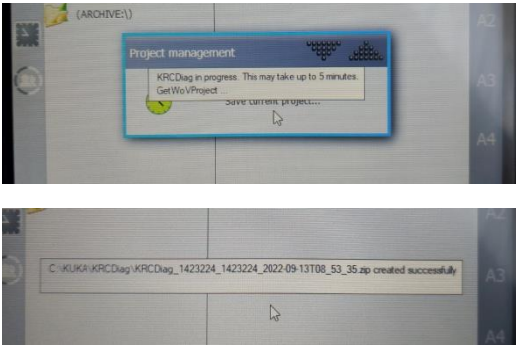
Hint: Remember the name of the file! - Go to “C:\KUKA\KRCDiag\
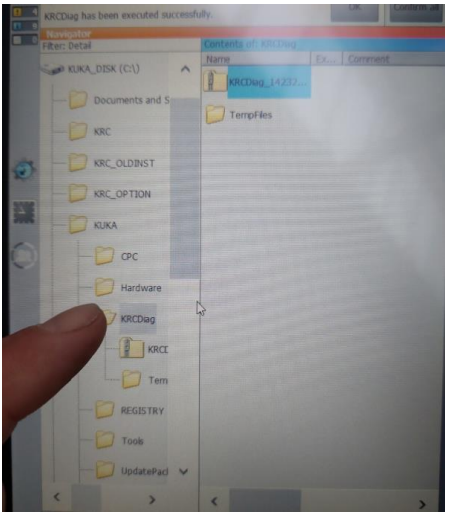
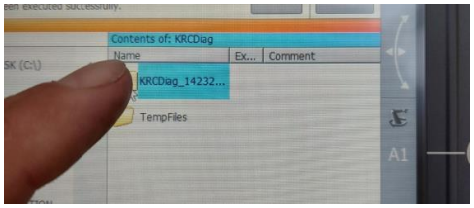
- Select the Diagnostic file
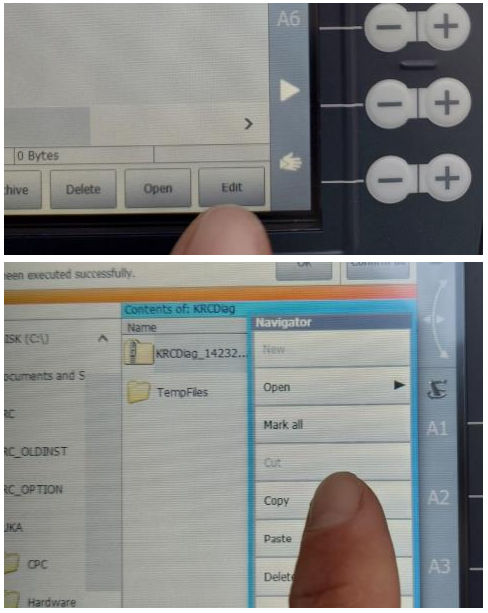
- Press “Edit” and “Copy”
- Select your USB-Stick
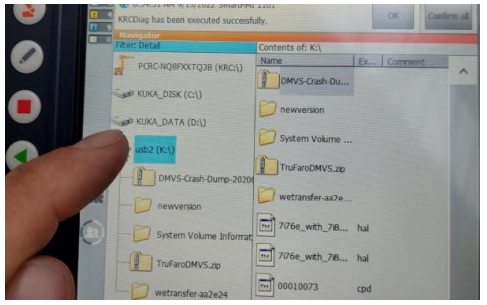
- Press „Paste“ in the Edit menu
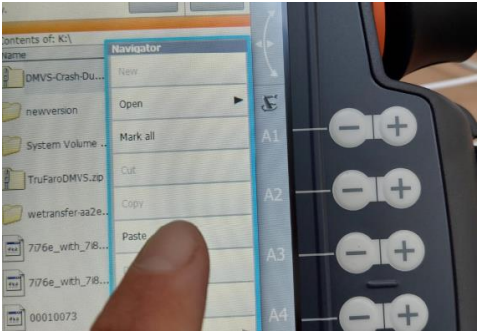
- Now, the KRCDiag file is copied to the USB-Stick.
- Pull out the USB-Stick and send the File to BEC.
- Switch to T1 and cancel the active program